
4.9 KiB
| layout | ||||||||||||||||||||
|---|---|---|---|---|---|---|---|---|---|---|---|---|---|---|---|---|---|---|---|---|
|
Customizing the Shop
Sylius stands out from other eCommerce platforms not only because of its vibrant community and clean codebase but also due to its exceptional developer experience. Its flexibility and ease of customization allow you to adapt the platform to meet your unique business needs.
Let’s explore how you can leverage these features to make a simple yet important customization: replacing the default Sylius logo with your store’s custom logo.
Logo
The default Sylius templates are clean and elegant, but you might want to make your store unique by customizing it with your brand’s logo. Here’s how you can replace the default Sylius logo:

Step 1: Add Your Custom Logo
-
Copy your logo file to the following directory:
assets/shop/images/logo.png -
Next, you need to import the logo in the
entry.jsfile located at:assets/shop/entry.js -
Add the following line to import the logo:
import './images/logo.png'; -
After making this change, run the following command to rebuild the assets:
yarn build
Step 2: Embed the Logo in the Template
Now, let’s create the template that is responsible for displaying the logo. All templates are supposed to be managed and organized in the /templates directory. Your new template might look like this:
<img src="{{ asset('build/app/shop/images/logo.25de7998.png', 'app.shop') }}" alt="Logo"/>
Ensure the second argument in the asset() function is correct for the app context. For more details, check the Managing Assets page.
Step 3: Override the Template with Sylius Twig Hooks
{% hint style="info" %} Sylius Twig Hooks is a completely new concept introduced in Sylius 2.0. You can find dedicated documentation on this topic here. {% endhint %}
Sylius 2.0 introduces Twig Hooks for customization. First, use the browser’s developer console to identify the element you want to change. For the logo, the relevant block is:
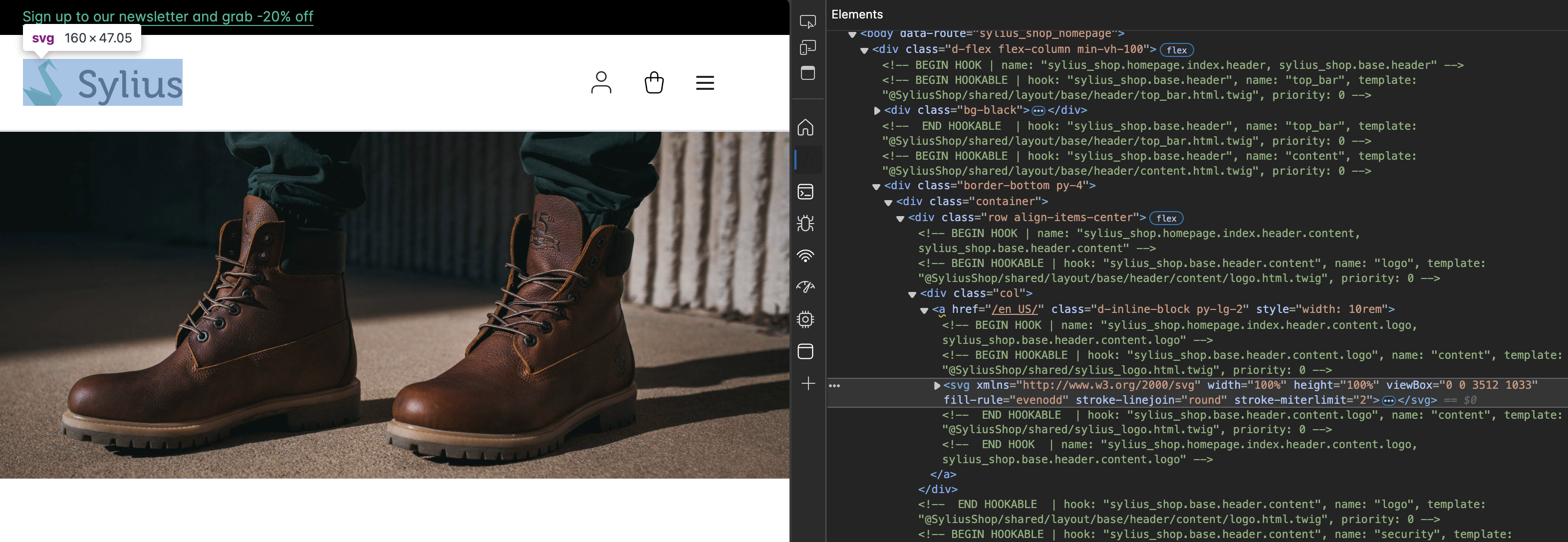
DIrect view from the browser
In our case, the following block is relevant:
<!-- BEGIN HOOK | name: "sylius_shop.homepage.index.header.content.logo, sylius_shop.base.header.content.logo" -->
<!-- BEGIN HOOKABLE | hook: "sylius_shop.base.header.content.logo", name: "content", template: "@SyliusShop/shared/sylius_logo.html.twig", priority: 0 -->
In summary, a hook is a specific location within the template where you can attach or override custom content. A hookable refers to the individual element (such as a template or component) that is linked to the hook. You can assign multiple hookables to a single hook, allowing for flexible customization.
Since we want to override the logo, we need to reference our custom logo template in the appropriate hook and hookable configuration. A custom configuration for this might look like the following:
sylius_twig_hooks:
    hooks:
        sylius_shop.base.header.content.logo:
            content:
                template: 'header/content/logo/content/logo.html.twig'
Place your custom logo template in the specified path. You can customize the directory structure, but following Sylius’ hierarchy is recommended for future consistency.
Step 3 (Alternative Approach): Override the Template with Template Overriding
If you prefer not to use Twig Hooks, you can override the Sylius template directly, the old way.
Identify the Template:
The original logo template is located at:
<vendor_path>/templates/shared/logo.html.twig
Override It:
Create a new file with the same name in the following directory:
templates/bundles/SyliusShopBundle/shared/logo.html.twig
Step 4: Final Result
After following either method, your custom logo should now be displayed on your store.

Next Steps: Introducing Custom Business Logic
Congratulations! You’ve successfully customized a Sylius template. Let’s take things a step further by introducing your business logic into the system.
For more information on customizing templates or Sylius template events, check out the Customizing Templates chapter and the Managing Assets documentation.