
2.9 KiB
mycobot_ros


Notes:
Make sure that
Atomis flashed into the top Atom andTransponderis flashed into the base Basic .The tool download address: https://github.com/elephantrobotics/myCobot/tree/main/Software
ubuntu: 16.04LTS
ros version: 1.12.17
Installation
Option 1: Docker
There are two ways to run this project. The first is by running the project in a container, and this requires installing docker and installing docker-compose. The benefit of running in the container is that you can run the project in any version of linux, as long as your kernel is new enough.
Once docker is installed, run the following command, and the project should show up:
docker-compose build ros && xhost +local:root && docker-compose up ros
This command does three things:
-
docker-compose build rosThis builds the project in a container. That means nothing is installed on your host machine! The first time this runs, this command will take a long while. After running it once, caching will allow this command to run quickly.
-
xhost +local:rootThis command gives X the ability to display GUI's from within the docker container
-
docker-compose up rosThis runs the image specified in the
docker-compose.yml, which by default runs the commandroslaunch mycobot_ros control_slider.launchwithin the container.
Option 2: Local
1.1 Pre-Requriements
For using this package, the Python api library should be installed first.
pip install pymycobot --user
1.2 Package Download and Install
Install ros package in your src folder of your Catkin workspace.
$ cd ~/catkin_ws/src
$ git clone https://github.com/elephantrobotics/mycobot_ros.git
$ cd ~/catkin_ws
$ catkin_make
$ source ~/catkin_ws/devel/setup.bash
1.3 Test Python API
cd ~/catkin_ws/src/mycobot_ros
python scripts/test.py
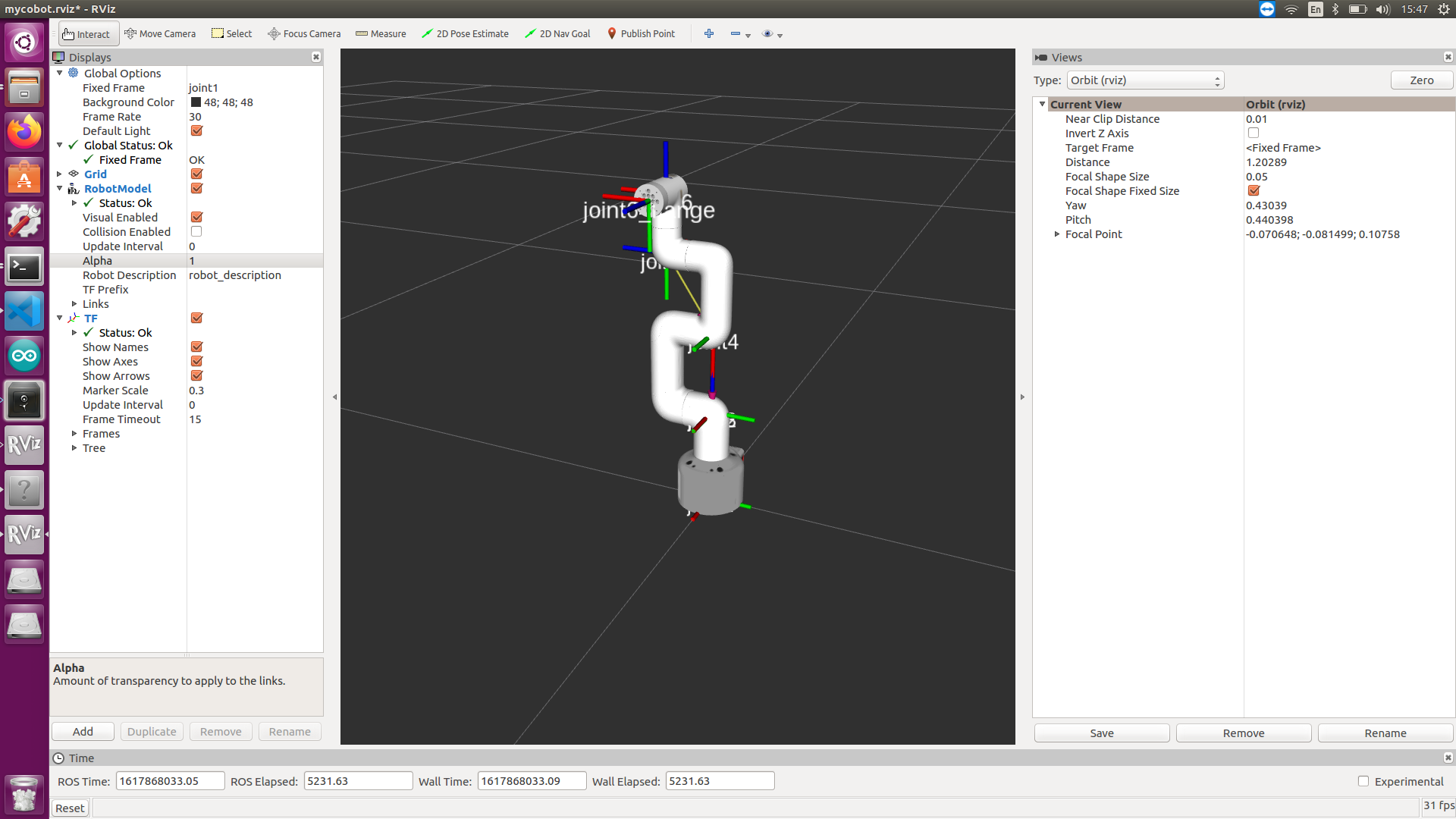
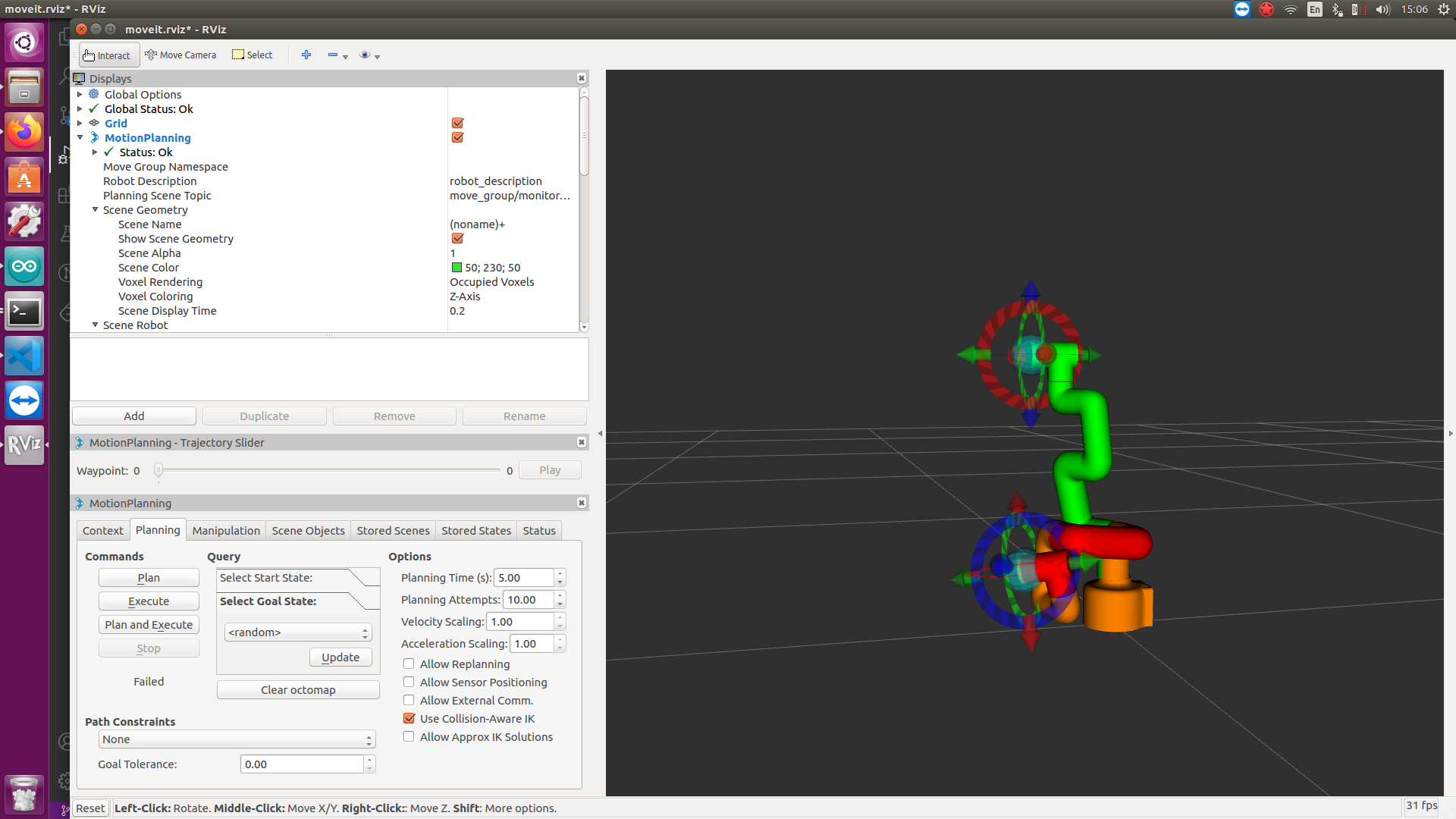
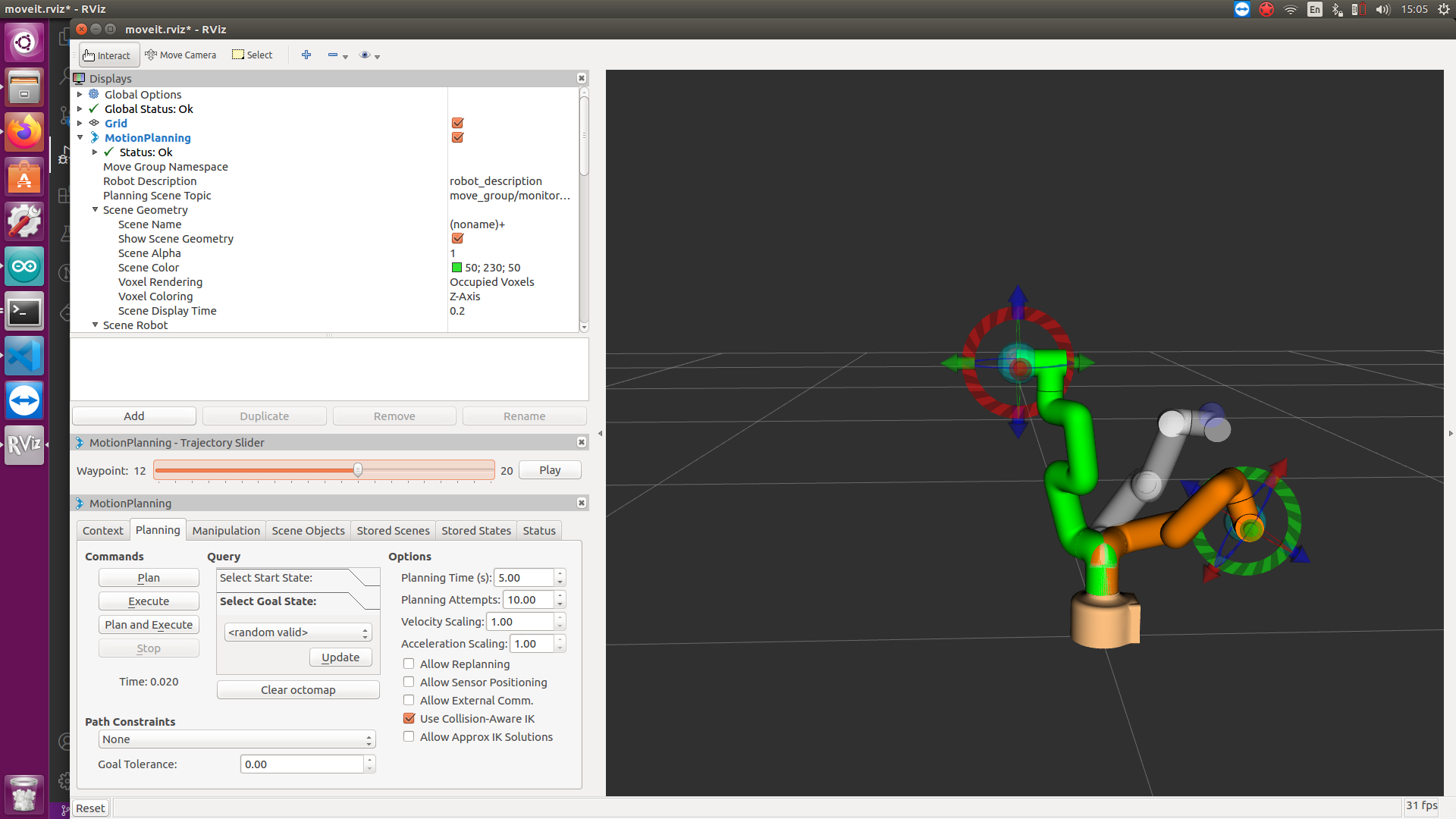
Screenshot

Q & A
Q: error[101]
A: Make sure that the serial port is not occupied, and that the correct firmware is burned in for atom and basic